

Freedom blocks distracting websites and apps
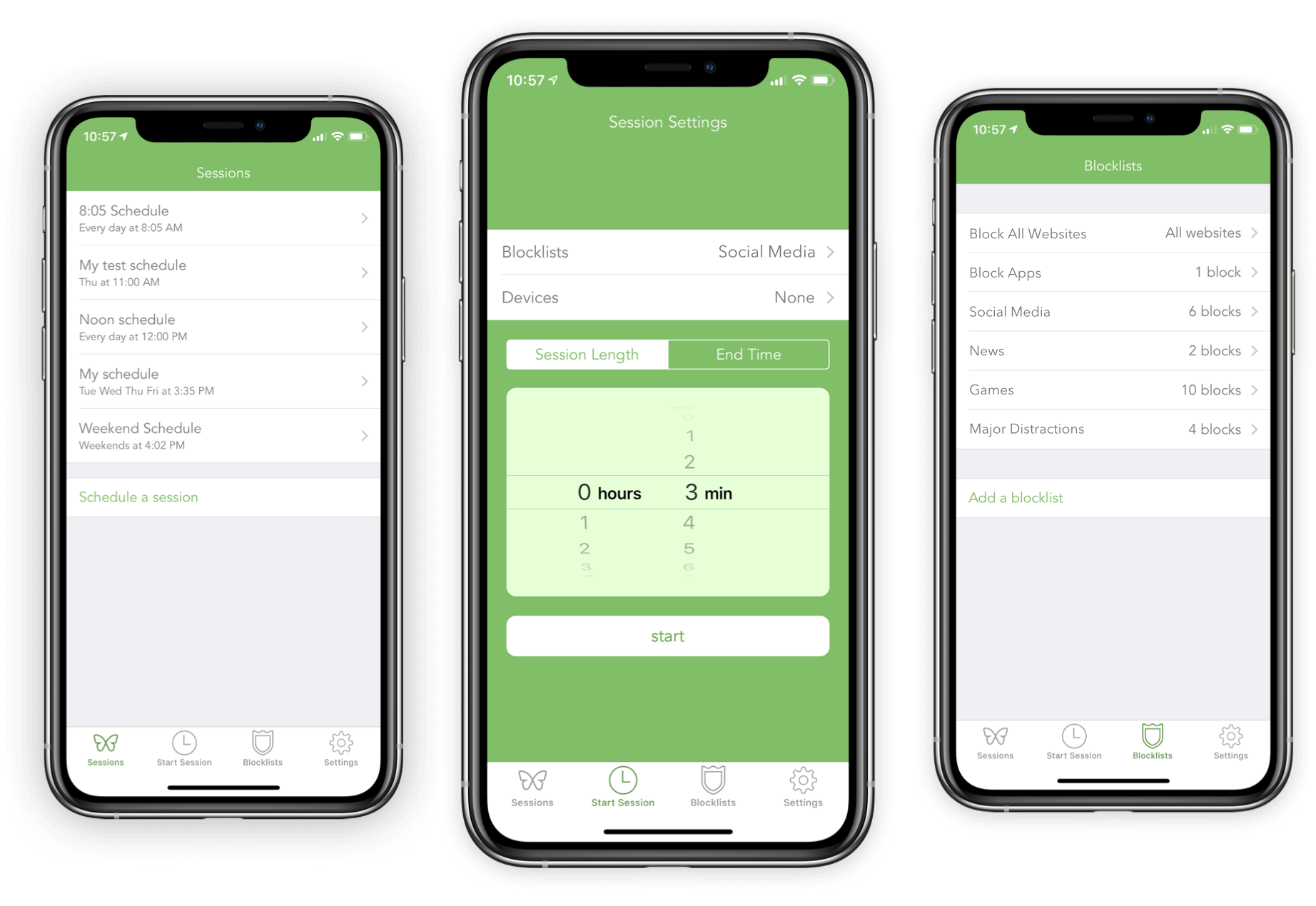
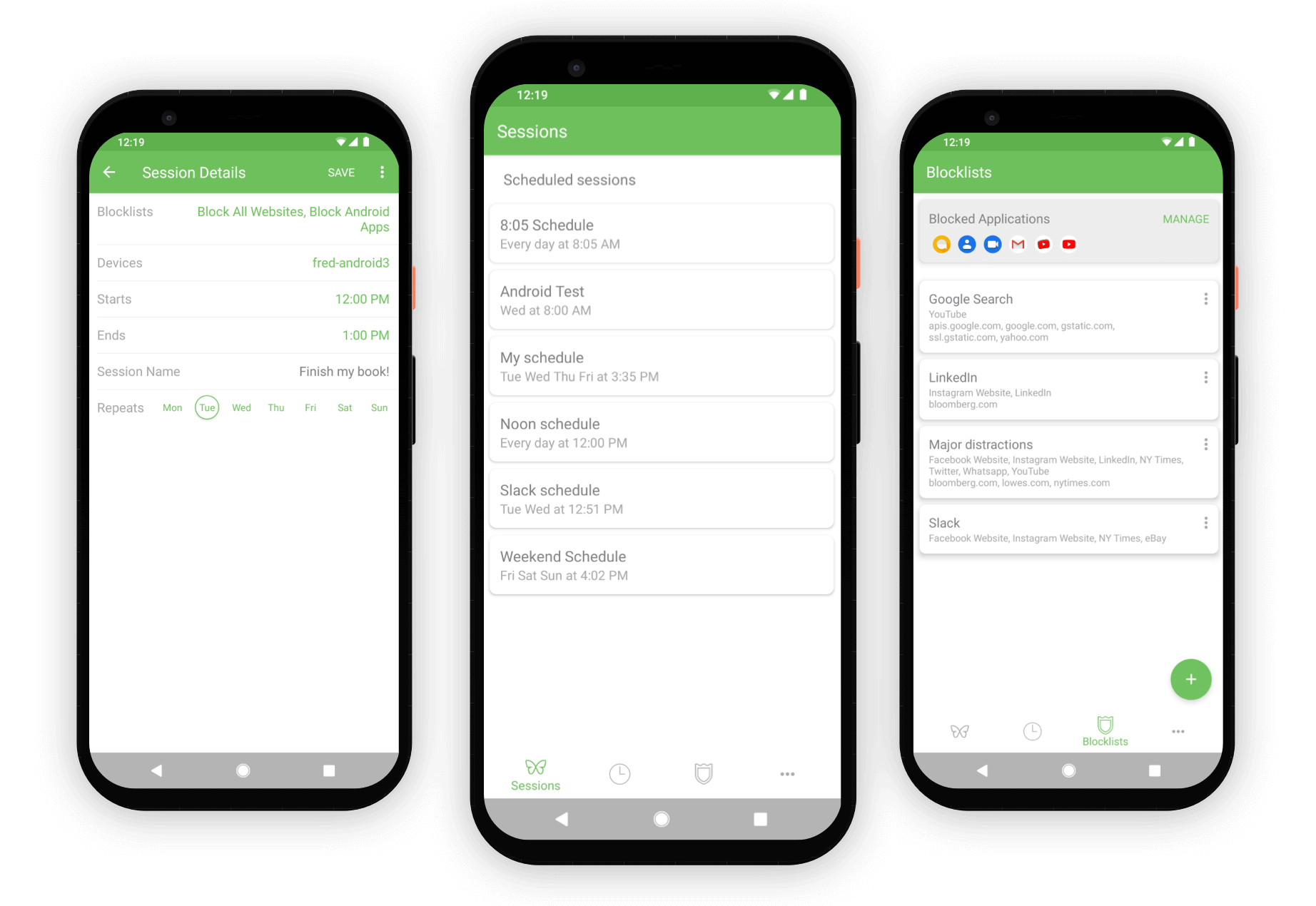
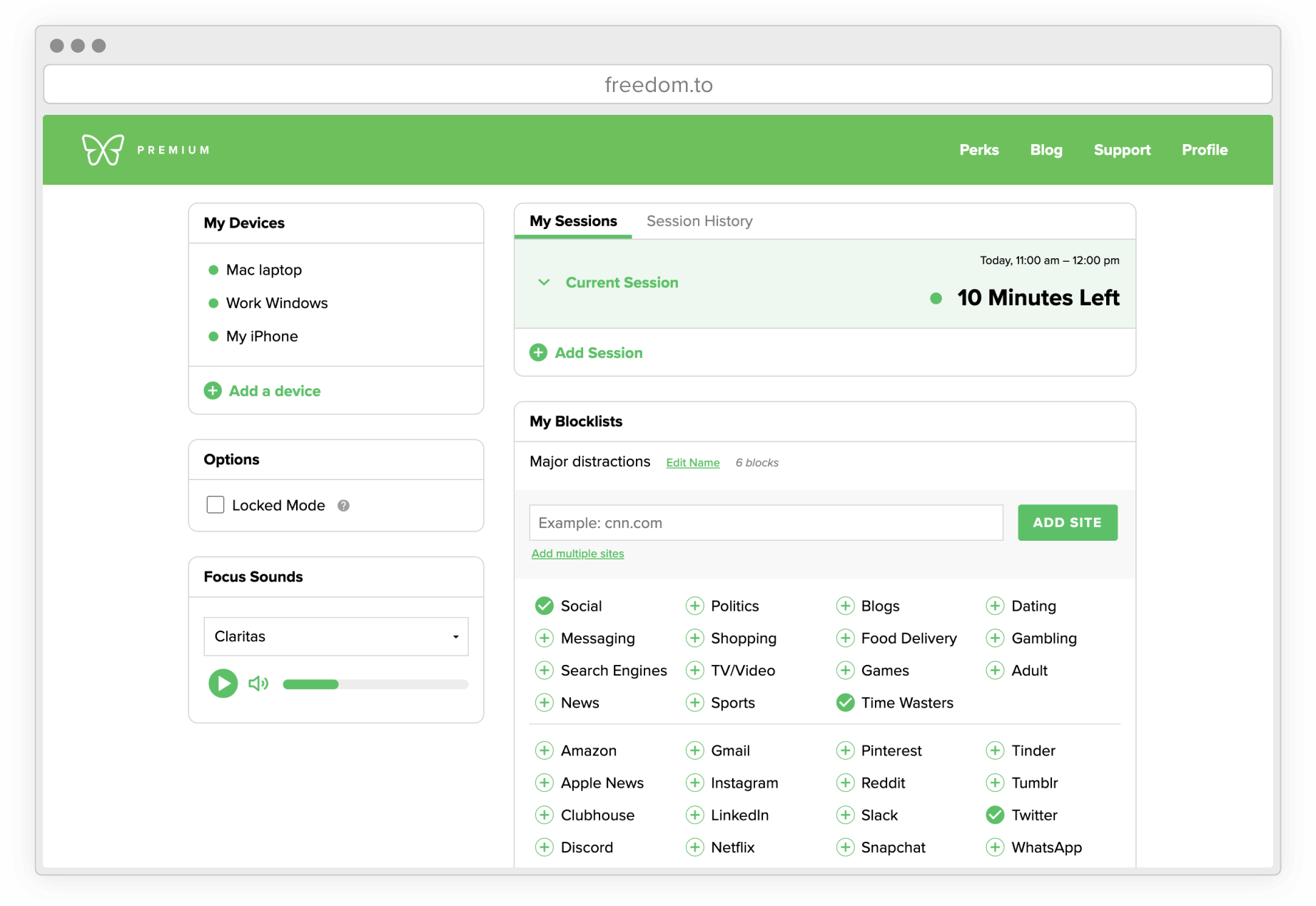
Use Freedom to block distractions so you can get your work done.
Block what you want, when you want, and be more productive.
Digital distractions are worse than ever. Freedom blocks them. No other screen time solution gives you the powerful multi-device control of Freedom. Mac, Windows, iOS, Android, or Chrome – we've got you covered.
Watch your focus improve with every session. Start your free trial today.

Use Freedom to block distractions so you can get your work done.
Block what you want, when you want, and be more productive.
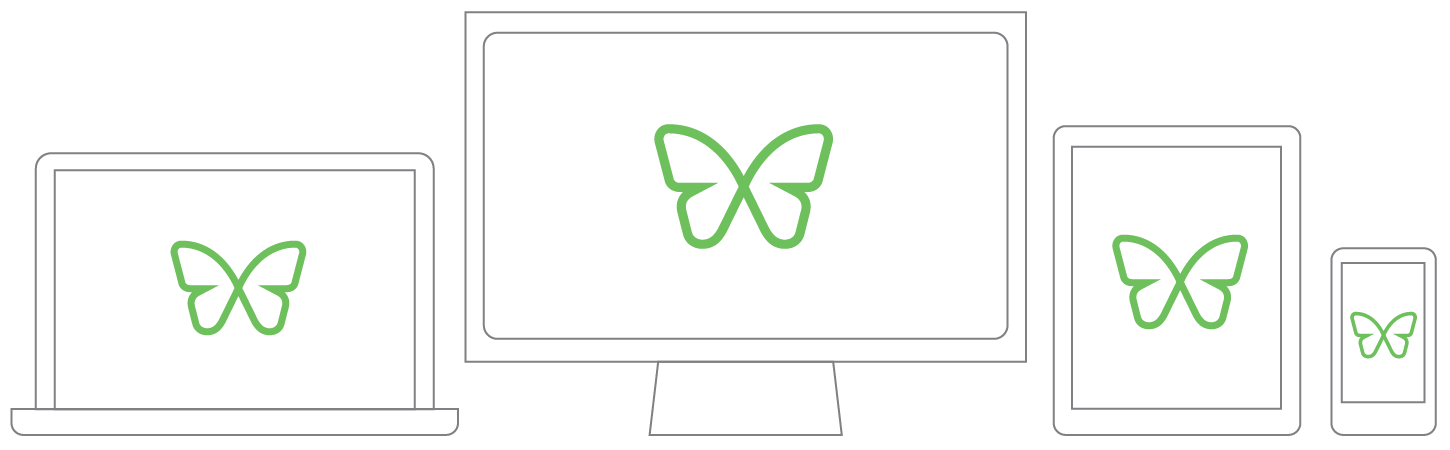
Whether you use Mac, Windows, Android, iOS, or Chrome, Freedom can sync blocks across all of your devices. Sit down to work knowing you're completely in control of distractions.
Start sessions on-the-fly or schedule your Freedom time in advance. Plan out sessions that recur daily or weekly. With Freedom, you’ll make time for productivity and things that matter most.
Freedom users report gaining an average of 2.5 hours of productive time each day.
We're proud to have helped our users reclaim 10,000,000 hours in the past year.
No wonder Freedom is used by people at the world's best companies and universities.

“When I click that Freedom butterfly, I write.”

“Wow. I’ve written 14 novels and countless short stories with Freedom on.”

“I use Freedom and an online timer to streamline my work sessions.”

“I use Freedom religiously to keep me on task, both on my phone and my laptop.”

“My first kids’ book was completed directly due to the extra hours Freedom gave me.”

“Freedom saves my life. I could never have written my latest book (ironically on topic of attention) without this life-saving app.”

“The Freedom app disciplines me when I don’t have the human strength to do so.”

“Freedom is an essential tool in my work.”
“I honestly cannot fathom being able to write as much as I do without the help of Freedom!”
Join over 3,000,000 people using Freedom to be more productive. You can get started for free, and cover all your devices for less than $3.50 a month.
Stop being distracted by your phone, tablet or computer - get Freedom.